Smart Alerts, Zero Noise
My Claude sends notifications through multiple channels when your usage crosses thresholds or your pace status changes. You choose the channels, the thresholds, the quiet hours, and the cooldown. No spam, no noise - just the alerts that matter.
Desktop Notifications
macOS
My Claude uses the native UNUserNotificationCenter for macOS notifications. On first launch, you'll see a system prompt asking for notification permission. Click Allow to enable desktop notifications.
If you missed the prompt or denied it, re-enable in System Settings > Notifications > My Claude.
macOS notifications appear in Notification Center and support alert banners, history, and sound alerts.
Windows & Linux
On Windows and Linux, My Claude uses native notification APIs (notify-rust). Notifications appear in your system's notification area without additional configuration.
WhatsApp Notifications
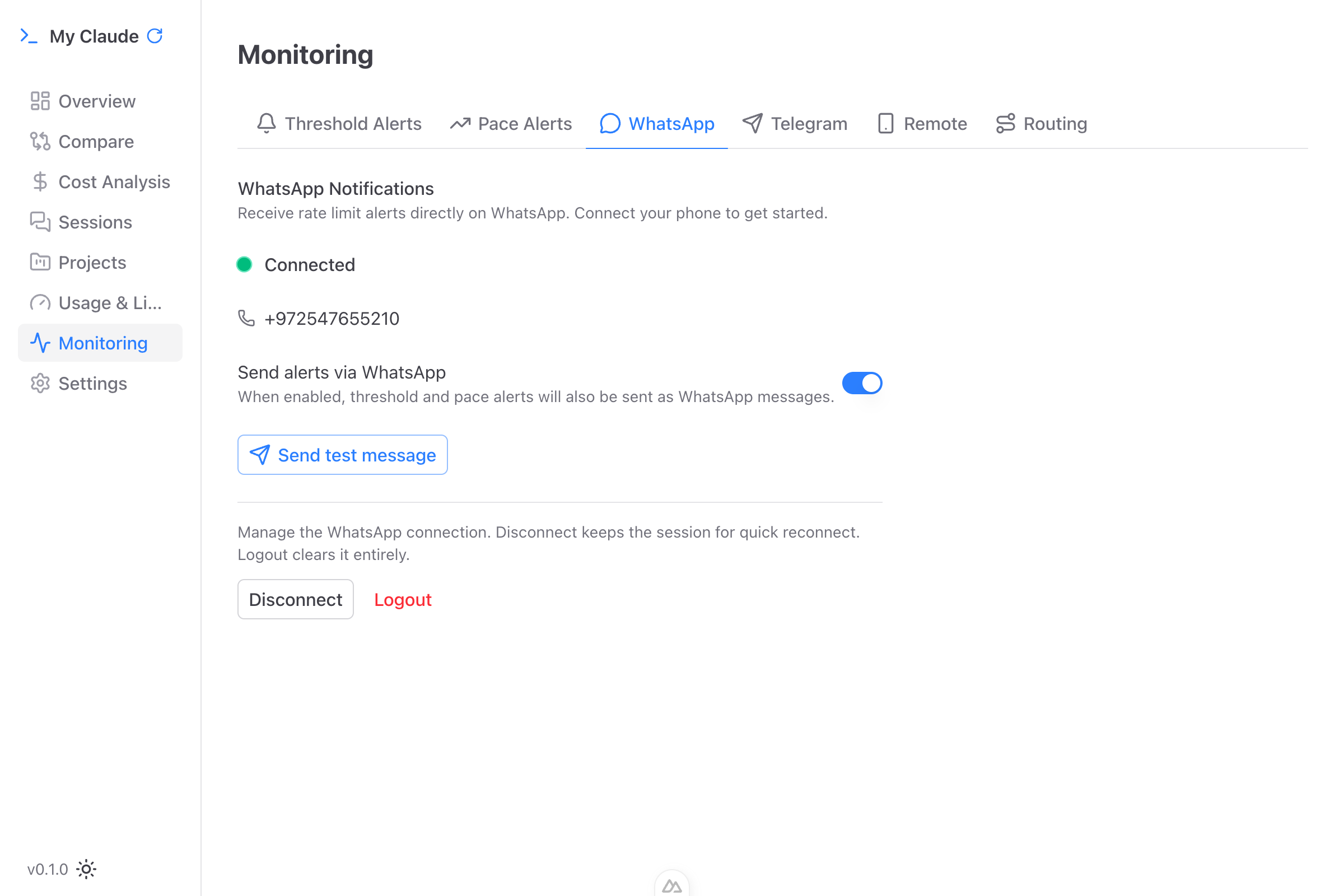
My Claude can send alerts directly to your WhatsApp. This is the fastest way to know you're approaching rate limits when you're away from your desk.
Setup
- Go to Monitoring > WhatsApp in My Claude
- Click Connect WhatsApp
- Enter your phone number
- Scan the QR code with WhatsApp on your phone
- Send a test notification to verify the connection
Once connected, you'll see a green pulsing dot with "Connected" status, your phone number, and message queue stats. The connection persists across app restarts.
WhatsApp notifications support bidirectional messaging - you can reply to check your current status or control Claude sessions remotely via Remote Mode.
Telegram Notifications
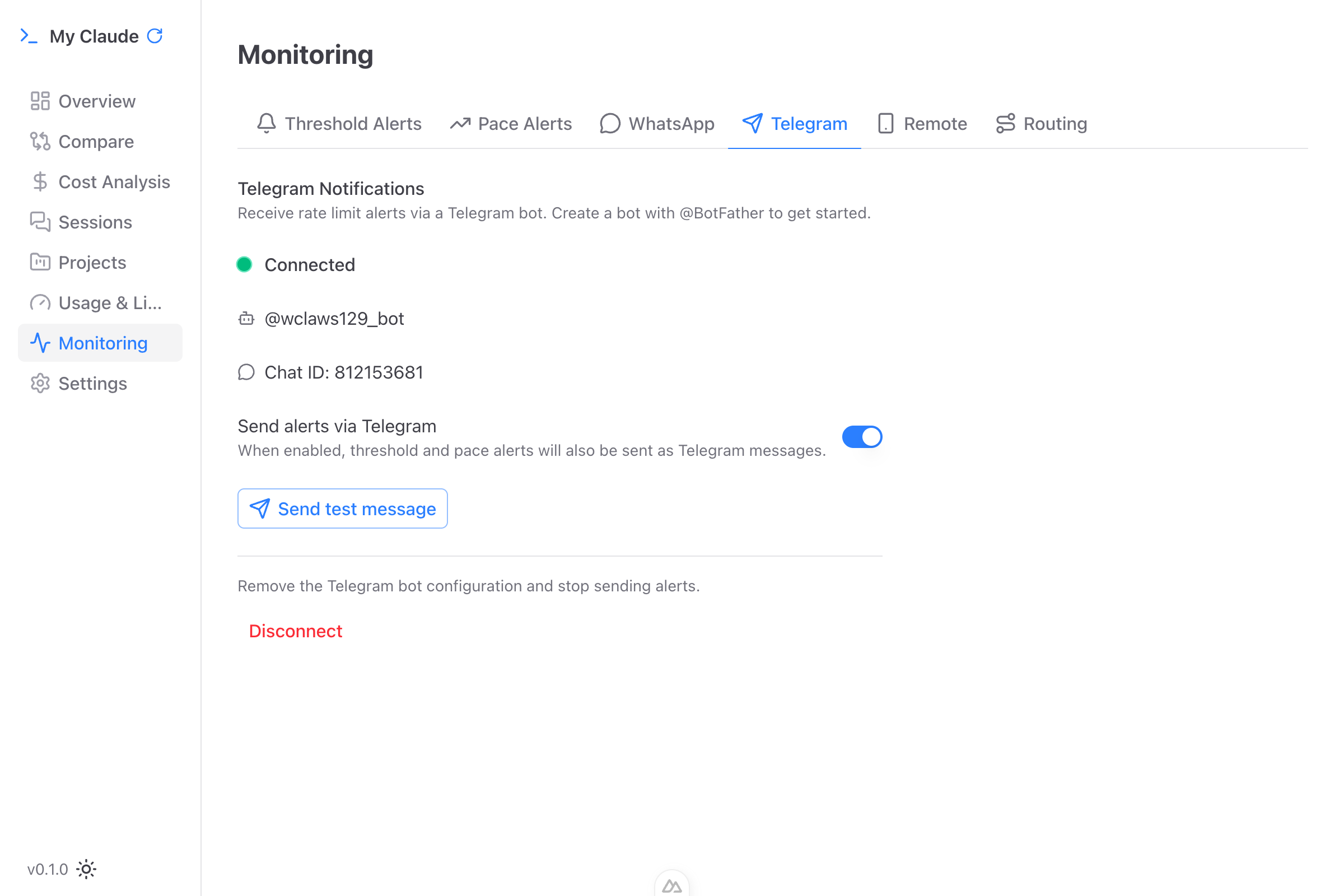
My Claude can send alerts to a Telegram account through a bot.
Setup
- Go to Monitoring > Telegram in My Claude
- Click Setup
- Paste your Telegram bot token (from @BotFather)
- Send any message to the bot in Telegram - My Claude auto-detects the chat ID (no manual copy-paste needed)
- Send a test notification to verify the connection
Like WhatsApp, Telegram supports bidirectional messaging for remote status checks and Remote Mode.
Notification Sounds
Customize the notification sound for desktop alerts:
- Default - System default notification sound
- Ping
- Glass
- Hero
- None - Silent notifications (visual only)
Quiet Hours
Configure a quiet window (e.g., 10 PM to 8 AM) during which notifications are suppressed. Alerts that trigger during quiet hours are still recorded in the notification history but won't interrupt your sleep. Quiet hours apply to threshold and pace notifications only - Remote Mode permission requests still come through so Claude doesn't stall.
Cooldown Period
Set a cooldown (15 minutes to 2 hours) to prevent repeated alerts for the same threshold. After a notification fires, the same threshold won't trigger again until the cooldown expires. This prevents your phone from buzzing every few minutes when you're hovering around a threshold.
System Tray
My Claude runs in the system tray and shows a quick summary of your current usage:
- 5h: XX% - Live 5-hour window utilization
- 7d: XX% - Live 7-day window utilization
- 7d Sonnet: XX% - Live Sonnet-specific utilization
- Refresh - Pull latest data
- Show/Hide - Toggle the main window
When Close to Tray is enabled (in Settings), closing the window minimizes My Claude to the tray instead of quitting. Your rate limits stay visible in the menu bar at all times.
Notification Center
The in-app Notification Center stores all past alerts so nothing slips through:
- View notification history with timestamps
- Status indicators for each notification (pending, replied, timeout, cancelled)
- Mark individual notifications or all as read
- Unread badge with count
- Filter by notification type (threshold, pace)
Access it from the bell icon in the sidebar. A red dot appears when you have unread notifications.